Scenes, playlists and schedules
This page is about the Scenes area. It has three tools:
- Presets save a complete lighting mood.
- A playlist plays several presets one after another.
- Schedules switch things on or off, or apply a preset, at set times.
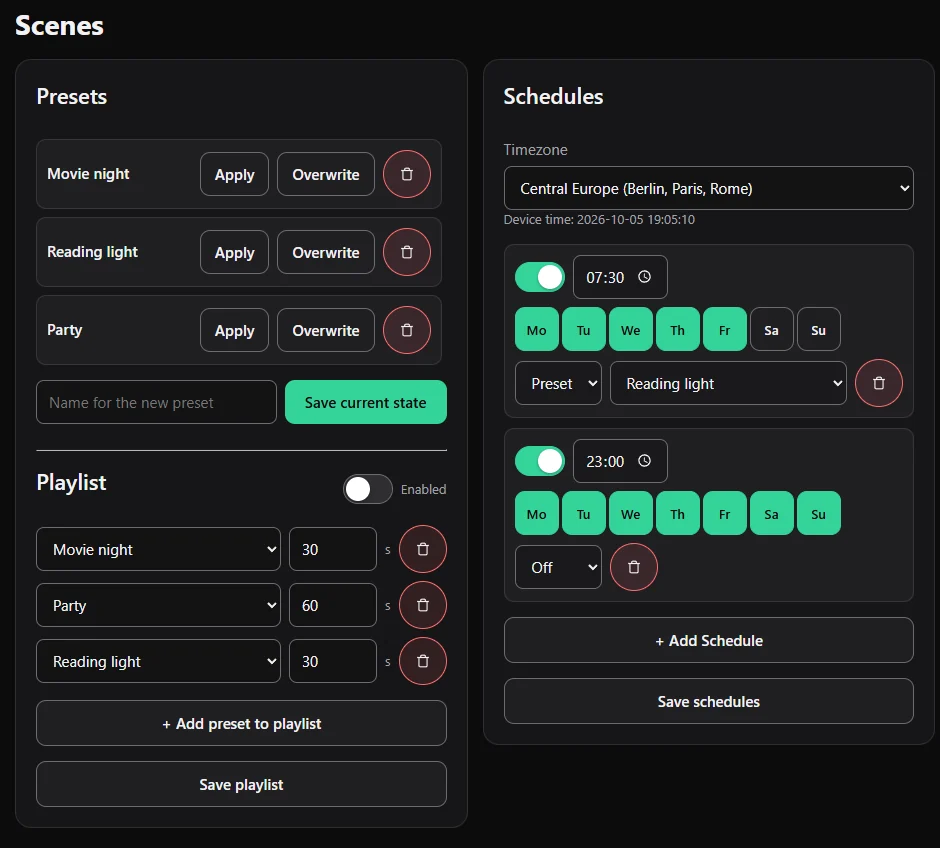
Presets
A preset remembers the current state of your lighting: effects, colours, speed and brightness of your segments.
Save one:
- Set up the light on the Light page the way you like it.
- Open Scenes, type a name in the field Name for the new preset and press Save current state.
Use one:
- Apply puts the preset on your LEDs.
- Overwrite replaces the preset with the current state of your lighting.
- The bin deletes it.
Playlist
A playlist runs your presets in a loop, for example a different mood every minute.
- Press + Add preset to playlist.
- Choose a preset and how many seconds it should stay on.
- Add more entries; use the bin to remove one.
- Press Save playlist, and switch Enabled on.
Needs at least one saved preset.
Schedules
A schedule does something at a certain time on chosen days.
- Choose your Timezone at the top. Under it you see the time that the device has.
- Press + Add Schedule.
- Set the time and tick the weekdays (Mo to Su).
- Choose the action: On, Off or Preset (and then which preset).
- Press Save schedules.
You can switch each schedule on or off with its toggle.
Good to know: The device gets the time from the internet (NTP) over your Wi-Fi. Without a Wi-Fi connection to the internet it does not know the time, and schedules do not run. If the time is not synchronised, the page says so.
Example: 07:30, Monday to Friday, preset "Reading light" and 23:00, every day, Off.
What is kept
Presets, playlist and schedules stay when you update the firmware online, and they are part of a backup.